Extension help
A Chrome extension is a small tool beside your browser's address bar. Use this one while viewing a property listing.
Use desktop Chrome, in a regular browser window. You can browse this guide on your phone, but saving with the extension needs a computer.
British English narration · Large English subtitles included · Illustrated Chrome controls and an actual test popup
Install easydaylab Homes
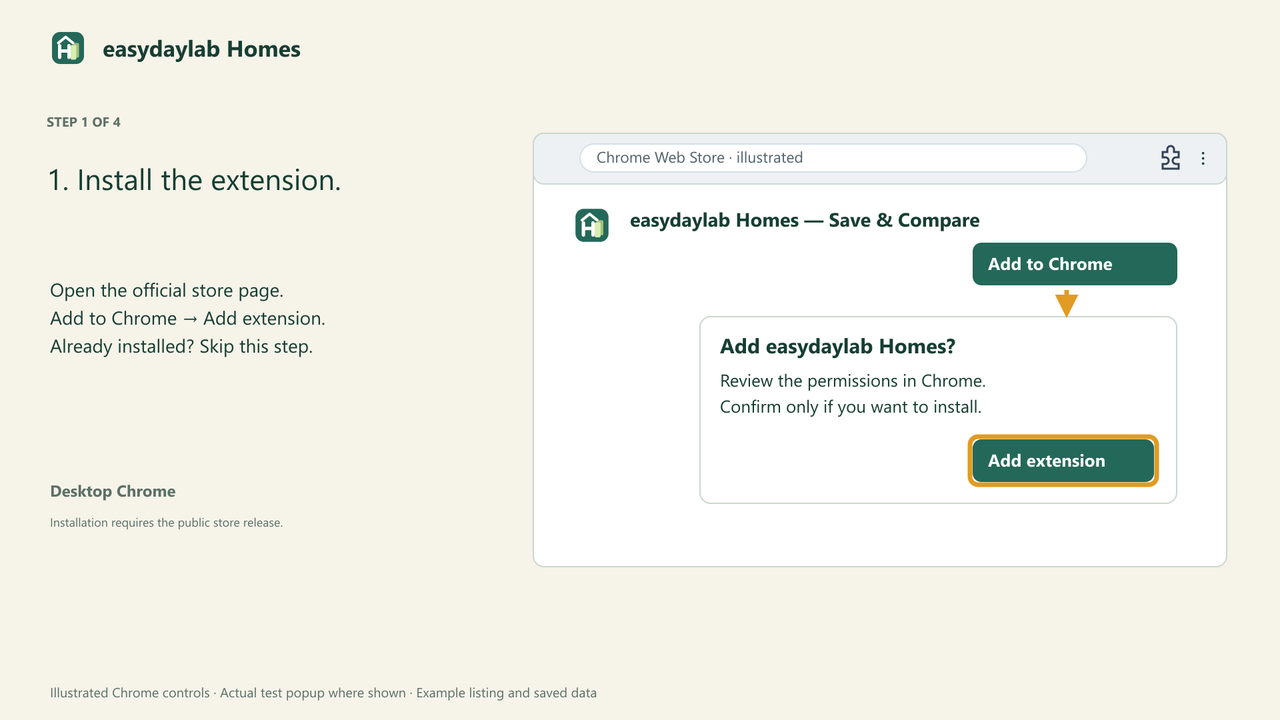
Open the official Chrome Web Store page. Choose Add to Chrome, review the permissions, then choose Add extension. If it is already installed, go to step 2.
Find and pin the H icon
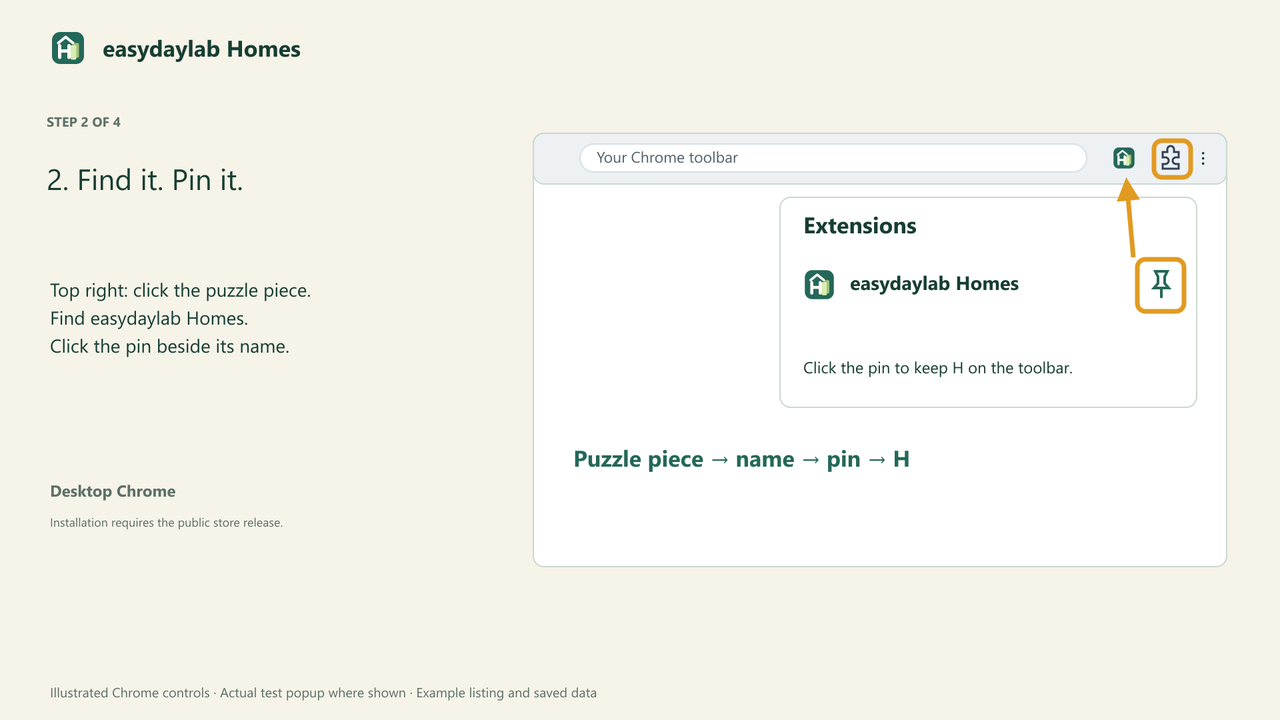
At the top right of Chrome, beside the address bar, click the puzzle-piece Extensions button. Find easydaylab Homes and click the pin beside its name. The green H icon stays on your toolbar.
Open a property listing, then click H
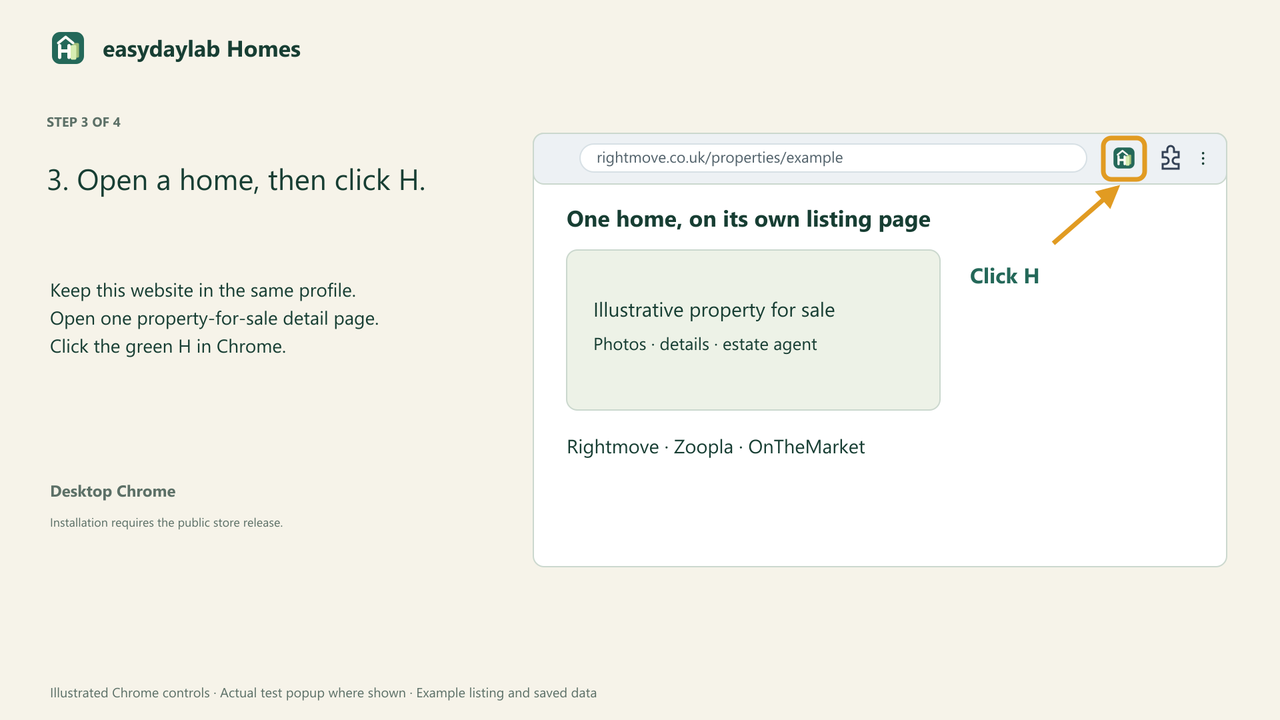
Keep this website open in the same Chrome profile. Open one residential property-for-sale detail page on Rightmove, Zoopla or OnTheMarket. Click the H icon in Chrome's toolbar. Search-results pages and rental listings are not supported.
Click Capture and save
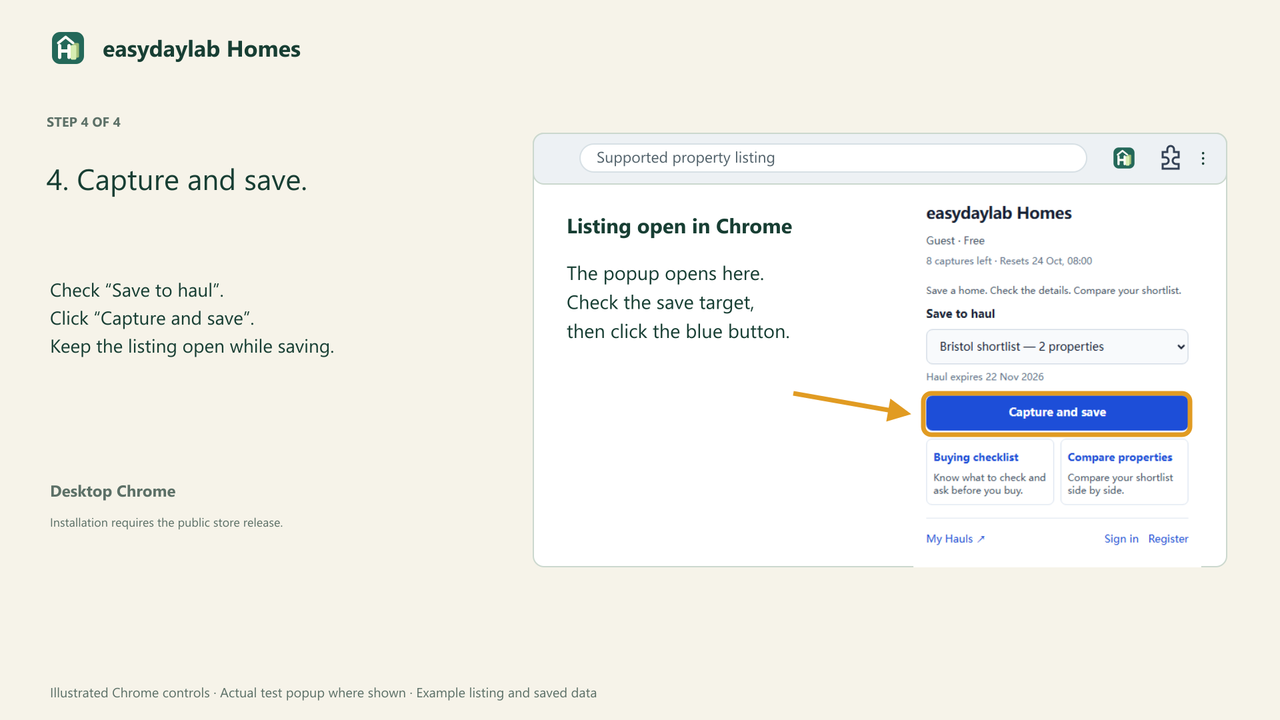
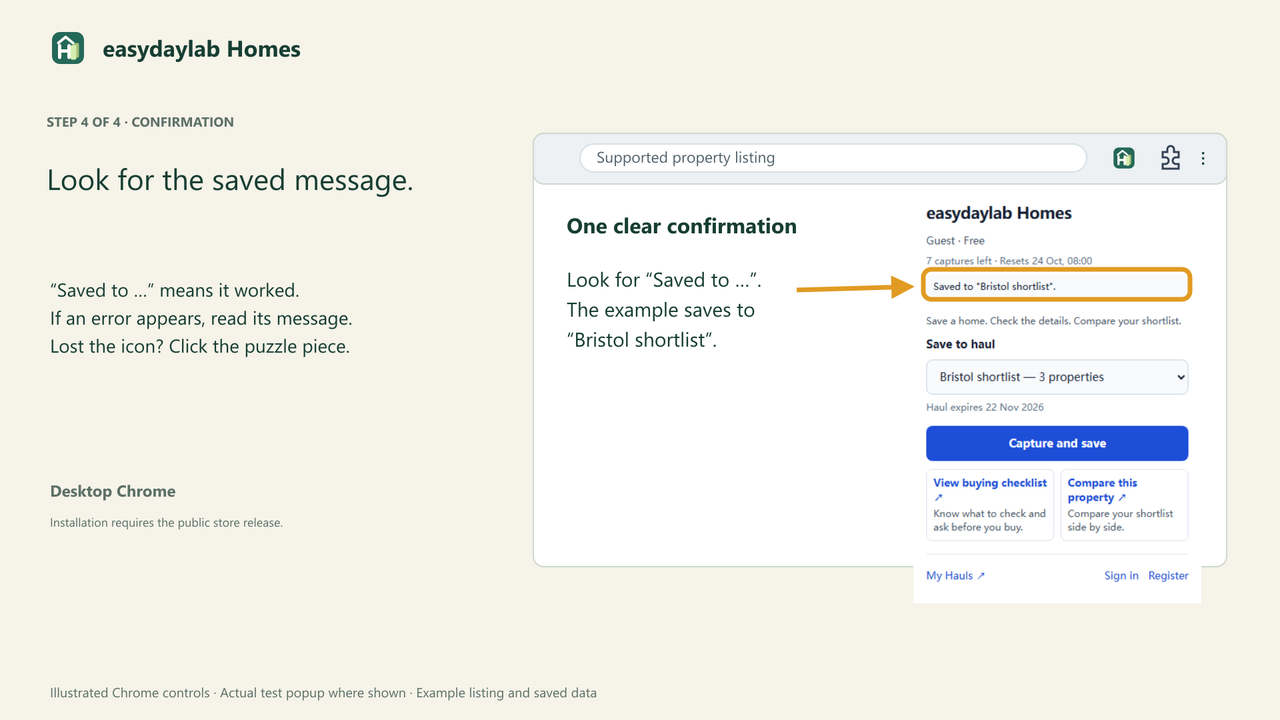
In the popup, check Save to haul, then click Capture and save. Keep the listing open while saving. A Saved to … message confirms success.
Stuck on a step?
I cannot find the H icon
Click Chrome's puzzle-piece Extensions button and look for easydaylab Homes. If it is there, select its pin. If it is absent, check that you installed it in this Chrome profile. A work or school browser may restrict installation.
Capture and save is unavailable
Open an individual residential property-for-sale page on a supported portal, finish any portal sign-in or security check, then open the extension again. Check the message in the popup and use the same Chrome profile as this website. If your save target is unavailable, choose an editable one.
The save failed
Read the message in the popup first. If it asks you to retry, keep the listing open and choose Try again. If it reports an allowance or save-target problem, follow that message. For help, contact support with the portal name and error text; do not include passwords or account codes.
Browser controls are illustrated and may look slightly different in your version of Chrome. Popup images use invented demo data. Chrome's installation help ↗